🟣 CA FAQ — Why am I getting a "access denied" message when opening an AccountRight file in AE/AO?
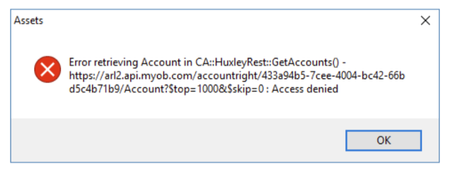
If you use AE/AO, you may encounter an "access denied" error when trying to open an AccountRight file in Client Accounting, similar to the message below: This is often due to the default Administrator user in the AccountRight file being linked to a my.MYOB account or set up with a password. This Administrator account is used by AE/AO in the background to connect to the configured files. If there is a password or email linked to it, Client Accounting will not be able to authenticate, and this throws up the error message. ⛔ You can confirm this by opening the file in desktop AccountRight and checking the following: Create an online MYOB login for this user should be unticked ☐ The Email field should be blank If the Administrator user has been linked to an email address/MYOB login, you will need to create a new user account in desktop AccountRight. You can name this account something like "AO Admin". Leave the above fields blank/unchecked and ensure the user account has administrator privileges selected. Do not enter a password. ❌ Once this new account has been created, you will need to go back into AE/AO and run the CAConfig script to remove the current configuration settings: Running an SQL script in AE/AO From there you will be able to reconfigure, entering the AO Admin (in this case) account in the Username field, and ensure you leave the password blank. Please reach out to the Client Accounting team if you have any questions. Scott Client Accounting MYOB100Views0likes0Comments🟣 CA FAQ — "Accountants Office will expire in x days" message in AO Classic
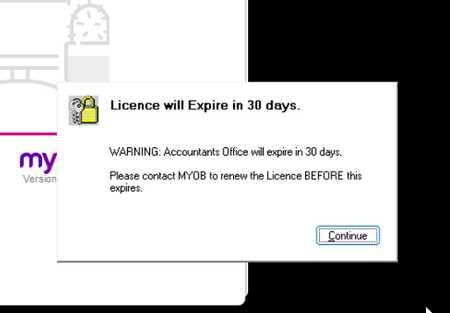
If you are an Australian customer and use AO Classic, you may be recently encountering the below message when launching the software. To resolve this, we will need to update your licence file (MYOBPS.MYL). Please send this file, which is located in your Accountants Office DATA folder (usually X:\MYOBAO\Data or C:\MYOBAO\Data) to [email protected]📨 Please include your client ID in the subject line, and the Licensing team will return the amended file with instructions on how to reload it into your system. Read more about this here: Error: "Licence will expire" Please reach out to the Client Accounting team if you have any questions. Scott Client Accounting MYOB179Views0likes0Comments🟣 CA FAQ — I've updated Windows, why can I no longer print reports in AE Accounts?
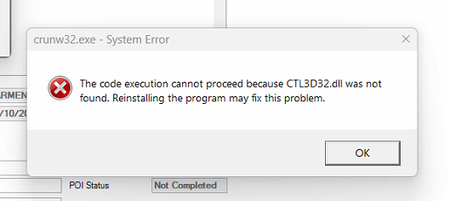
If you use AE Accounts, and have recently updated Windows, you may encounter an error when trying to review reports related to CTL3D32.dll. 🛑 This file was used by older versions of Windows as a part of UI rendering and was affected in a recent update. AE Accounts (being older software) relies on this file to generate/review reports and other functions. 📝 To resolve this, CTL3D32.dll can be copied from a working workstation to the C:\Windows\SysWOW64\ folder, and this will resolve the issue. However, it is important to always consult with your IT provider before making changes to the Windows directory on your workstation. Please reach out to the Client Accounting team if you have any questions. Scott Client Accounting MYOB177Views0likes0Comments🟣 Update — Changes to AE/AO
If your practice uses Accountants Enterprise or Accountants Office, you may have heard the news that we are rolling out some changes to how AE/AO works on the back-end. 🛠️ Due to a background service reaching end-of-life and being decommissioned, these functions have been moved over to a new service. What does this mean for me? This will not affect how you use AE/AO in the day-to-day, however outdated versions of the software will no longer function correctly. You will need to ensure AE/AO has been updated to the latest version. For both our Australian and Kiwi customers, the latest version is 5.4.54. If you do need to update, this is available via https://my.myob.com.au (AU) or https://my.myob.co.nz (NZ). Please reach out to MYOB Support if you need assistance with installation. Note: this does not apply to customers using our legacy software such as AO Classic, or System Release. Scott Client Accounting MYOB250Views0likes0Comments🟣 CA FAQ — I have created a new period in AE/AO (MYOB Business file), why do I have an out-of-balance?
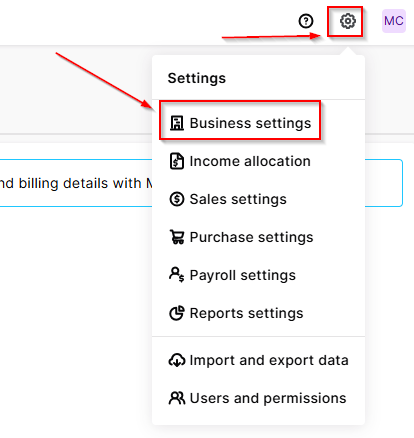
If you have a client in AE/AO configured to an MYOB Business file, you may notice that after creating a new workpaper period, there is an out-of-balance in the Balance sheet (even if you have chosen to roll forward in the Trial balance / Workpapers window). This is because Client Accounting does not automatically roll forward the underlying MYOB Business ledger — this will need to be done as a separate step in the file itself. To resolve this, open your browser and navigate to https://app.myob.com/ Open the relevant client file Navigate to Settings > Business settings > Financial year Select Start new financial year Jump back into AE/AO Open the current workpaper period Under the Tasks menu, select Refresh ledger balances This should resolve the out-of-balance, and you're good to go! ☑️ Scott Client Accounting MYOB177Views0likes0Comments
Trustee Minutes
In Client Accounting, the Trustee distribution minutes are automatically populated with the amounts that have been coded to the distribution to beneficiaries area. However, when the tax distribution is different to the accounting distribution, how do we overcome this? We have several clients that have distributions come into the tax return from other entities, but do not show on the financials for their particular trust. Other than exporting the minutes and manually altering, is there another way to correct the actual amounts distributed as per the tax return and not the financials?878Views0likes1Comment🟣 CA FAQ — I've set up a new employee, but they can't access Client Accounting
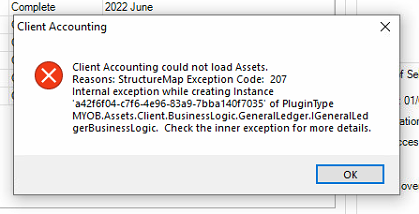
If you have recently set up a new user account for an employee in AE/AO, they may encounter an error referring to "StructureMap Exception Code: 207" when launching the Client Accounting tab for a client. This error message looks scary, but it has a simple solution! 🕵️ They are running into this because Cashbook access has not yet been enabled for the employee. To enable this, do the following: Head over to, and sign into cashbook.myob.com.au (AU) or cashbook.myob.co.nz (NZ) using a different MYOB account (not the affected user's account, but any other account will do) In the drop-down box in the top right corner, click Manage firm users On the list, find the employee that is encountering the error and toggle the button under Access to ON 🟩 That's it! Now the user will just need to close and reopen the client in Client Accounting, and it should load without issue. You can read more about this process here: Error: "Client Accounting could not load Assets. Reason: structure map exception code 207..." when clicking on Client Accounting tab 🟣 Bonus: You can also launch Cashbook via AE/AO directly by clicking the Launch AE/AO ledger button under the Ledger menu in the Workpapers/Trial balance tab. Scott Client Accounting MYOB200Views0likes0Comments