AO HELP Repayment Calculation Incorrect?
Hello, Having an issue in AO where I'm not convinced the HELP repayment is being calculated correct. Screenshot attached of the estimate however they have a HELP debt plus $28k of exempt fringe benefits. Shouldn't the adjusted taxable income for the HELP repayment be $87k and therefore a HELP repayment should be included?Solved165Views0likes3Comments
Great News! Extended Hours for EOFY Support!
Hey everyone, We know the End of Financial Year (EOFY) can be a busy time, and we want to make sure you have all the support you need! For those who might not have heard, we've extended our opening hours to give you even more flexibility during this period. That's right, we're open longer to help you with any last-minute queries, support requests, or assistance with installation of the new 2025.0 update! From the 28th of June to the 20th of July we are open Mon-Sun. Please see below for our contact hours for phone and chat during these dates: Phone: Mon-Friday 9am-5pm Sat-Sun 9am-5pm Chat: Mon-Friday 9am-7pm Sat-Sun 9am-5pm You can find all our updated contact details and extended hours on our Contact Us page or you can access our new chat bot MOCA via MYOB Practice or now from within AE/AO with the new 2025.0 update! Please visit this page on how to chat with us via MYOB Practice. Wishing you a smooth and successful EOFY! Cheers, Aiden from MYOB402Views2likes4Comments
MYOB AO running slow on workstations in local lan
Hi all I am new to this forum and I am hoping someone can point me in the right direction. I have a feeling this issue is related to the network and I have added the log below. Basically AO runs fine on the server but all workstations take over a minute to open a tax return or even open AO. I have had MYOB check all the registry settings and everything is pointed correctly but even they are stumped. I am particularly perplexed by the "unexpected network error" message. I am guessing it is some stupid setting somewhere so please let me know. Thanks all Date Time Type User Machine Application Description System Release Event Log 03/06/2026 10:16:13 Stop KKESH KOUROSH S6:\\ALPHA\MSSQL\AOTAX1\TAX\Tax2016 Unexpected network error 04/06/2026 13:12:53 Info andre ALPHA C:\MYOBAO\AOSQL\Tax\SYSTEM\OP Config routine completed for SYSWINZ 04/06/2026 13:16:39 Info andre ALPHA C:\MYOBAO\AOSQL\Tax\SYSTEM\OP Config routine completed for SYSCDS 04/06/2026 13:24:01 Info andre ALPHA C:\MYOBAO\AOSQL\Tax\SYSTEM\OP Config routine completed for SYSCDS 04/06/2026 13:24:05 Info SUPERVIS ALPHA C:\MYOBAO\AOSQL\Tax\SYSTEM\OP Page setup named "Capital Gains" font styles corrected 04/06/2026 16:37:27 Info andre ANDREWASUS \\Alpha\myobao\AOSQL\Tax\SYSTEM\OP Reset routine initiated in silent mode 04/06/2026 16:37:27 Info andre ANDREWASUS \\Alpha\myobao\AOSQL\Tax\SYSTEM\OP Reset routine completed 04/06/2026 17:27:19 Alert Unable to find the full licence file. Please contact your System Administrator. 05/06/2026 09:55:53 Info ptrov PETES-LAPTOP \\Alpha\myobao\AOSQL\Tax\SYSTEM\OP Reset routine initiated in silent mode 05/06/2026 09:55:54 Alert TROVAS PETES-LAPTOP \\Alpha\myobao\AOSQL\Tax\SYSTEM\OP User code TROVAS forcibly logged out by Reset routine 05/06/2026 09:55:54 Info ptrov PETES-LAPTOP \\Alpha\myobao\AOSQL\Tax\SYSTEM\OP Reset routine completed 05/06/2026 10:13:53 Info andre KOUROSH \\Alpha\myobao\AOSQL\Tax\SYSTEM\OP Reset routine initiated in silent mode 05/06/2026 10:13:54 Info andre KOUROSH \\Alpha\myobao\AOSQL\Tax\SYSTEM\OP Reset routine completed 05/06/2026 10:19:13 Stop TROVAS ANDREWASUS S6:\\ALPHA\MSSQL\AOTAX1\TAX\Tax2022 Unexpected network error 05/06/2026 10:19:15 Stop TROVAS ANDREWASUS S6:\\ALPHA\MSSQL\AOTAX1\TAX\Tax2022 Unexpected network error 05/06/2026 10:19:16 Stop TROVAS ANDREWASUS S6:\\ALPHA\MSSQL\AOTAX1\TAX\Tax2022 Unexpected network error 05/06/2026 14:08:28 Stop KOUROSH Cannot register debug window class: Class already exists. 09/06/2026 10:41:38 Stop KKESH KOUROSH S6:\\ALPHA\MSSQL\AOTAX1\TAX\Tax2018 Unexpected network error 09/06/2026 10:42:04 Stop KKESH KOUROSH S6:\\ALPHA\MSSQL\AOTAX1\TAX\Tax2019 Unexpected network error 11/06/2026 14:13:26 Info ptrov PETES-LAPTOP \\Alpha\myobao\AOSQL\Tax\SYSTEM\OP New user with login code "TROVP" added via User Import 11/06/2026 14:14:00 Stop Machine name not unique 11/06/2026 14:14:26 Stop Machine name not unique 11/06/2026 14:22:38 Stop Machine name not unique 11/06/2026 14:22:50 Stop Machine name not unique 11/06/2026 14:23:09 Stop Machine name not unique 11/06/2026 14:23:25 Stop Machine name not unique 11/06/2026 14:24:02 Stop Machine name not unique 11/06/2026 14:28:44 Stop Machine name not unique 11/06/2026 15:20:59 Alert Unable to find the full licence file. Please contact your System Administrator. 11/06/2026 15:21:11 Alert Unable to find the full licence file. Please contact your System Administrator. 11/06/2026 15:57:46 Alert Unable to find the full licence file. Please contact your System Administrator. 11/06/2026 15:58:53 Alert Unable to find the full licence file. Please contact your System Administrator. 11/06/2026 16:02:07 Alert Unable to find the full licence file. Please contact your System Administrator. 12/06/2026 14:17:10 Stop TROVP PETES-LAPTOP S6:\\ALPHA\MSSQL\AOTAX1\TAX\Tax2023 Unexpected network error 12/06/2026 14:17:11 Stop TROVP PETES-LAPTOP S6:\\ALPHA\MSSQL\AOTAX1\TAX\Tax2023 Unexpected network error 15/06/2026 19:20:13 Stop TROVAS ANDREWASUS S6:\\ALPHA\MSSQL\AOTAX1\TAX\Tax2022 Unexpected network error 15/06/2026 19:20:15 Stop TROVAS ANDREWASUS S6:\\ALPHA\MSSQL\AOTAX1\TAX\Tax2022 Unexpected network error 15/06/2026 19:20:20 Stop TROVAS ANDREWASUS S6:\\ALPHA\MSSQL\AOTAX1\TAX\Tax2023 Unexpected network error 15/06/2026 19:20:22 Stop TROVAS ANDREWASUS S6:\\ALPHA\MSSQL\AOTAX1\TAX\Tax2023 Unexpected network error 16/06/2026 14:58:21 Info andre ALPHA \\Alpha\myobao\AOSQL\Tax\SYSTEM\OP Reset routine initiated in silent mode 16/06/2026 14:58:22 Alert SUPERVIS ALPHA \\Alpha\myobao\AOSQL\Tax\SYSTEM\OP User code SUPERVIS forcibly logged out by Reset routine 16/06/2026 14:58:22 Alert KKESH ALPHA \\Alpha\myobao\AOSQL\Tax\SYSTEM\OP User code KKESH forcibly logged out by Reset routine 16/06/2026 14:58:22 Alert TROVP ALPHA \\Alpha\myobao\AOSQL\Tax\SYSTEM\OP User code TROVP forcibly logged out by Reset routine 16/06/2026 14:58:22 Info andre ALPHA \\Alpha\myobao\AOSQL\Tax\SYSTEM\OP Reset routine completed 16/06/2026 14:59:06 Info andre ANDREWASUS \\Alpha\myobao\AOSQL\Tax\SYSTEM\OP Reset routine initiated in silent mode 16/06/2026 14:59:07 Info andre ANDREWASUS \\Alpha\myobao\AOSQL\Tax\SYSTEM\OP Reset routine completedSolvedSR DAL Error 6522 - Solution
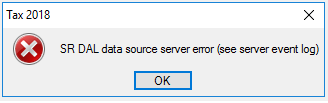
Hi Community, We have been seeing a spate of these errors on client sites, it seems to be a result of a recent .Net Framework security update, installing a new SystemMessaging.dll file. This file is required by the SRDAL to interact with the Tax database, in a VIZPOST scenario (sites without PM Plus). The issue presents with the following: SR DAL data source server error (see server event log) Assuming the SR DAL service is running and working correctly (and appropriate Windows firewall rules are in place), then the next thing to check is the event log error message. In the Event Log: Applications and Services Logs -> MYOB look for the following: System Release DAL SQL error 6522: [Microsoft][SQL Server Native Client 11.0][SQL Server]A .NET Framework error occurred during execution of user-defined routine or aggregate "MSync_SqlMsmq2SendMSMQMessage": System.IO.FileLoadException: Could not load file or assembly 'System.Messaging, Version=4.0.0.0, Culture=neutral, PublicKeyToken=b03f5f7f11d50a3a' or one of its dependencies. Assembly in host store has a different signature than assembly in GAC. (Exception from HRESULT: 0x80131050) See Microsoft Knowledge Base article 949080 for more [SELECT CURSOR] Once this is confirmed as the issue, you then need to confirm the current version of .Net and update the assembly security in the Tax database. 1. Open Windows Explorer 2. Browse to C:\Windows\Microsoft.NET\Framework 3. Confirm the folder with the highest number, this is currently v4.0.30319 4. Open SQL Management Studio and login as an administrator account 5. Ensure all users have exited MYOB AE and perform a backup. 6. Select the New Query button 7. Select your AETAX database from the drop down, please note this may not be called AETAX. 8. Enter in the following to the SQL Query, where the folder version number is the one confirmed in step 3. For this example, I will use the current version of 4.0.30319: ALTER ASSEMBLY [System.Messaging] FROM 'C:\WINDOWS\Microsoft.NET\Framework\v4.0.30319\System.Messaging.dll' 9. Press F5 or select the !Execute button to run the script 10. You should receive a message the change was made successfully. 11. Confirm Tax now opens and the data can be accessed. Please note: for sites running Profiles, it is also possible to correct this issue by running the AETAXConfigUpdate.exe routine from the MYOB BIN folder. Just make sure all staff are out of MYOB AE and a backup has been performed. As always, this information is provided "as is" and no responsibility will be taken for its misuse or damage caused by these steps. If you are do not understand what the above steps do, please do not attempt them. If in doubt, contact MYOB support :)Guide: Workstation Installation for Accountants Office
Hello everyone. We've published a quick guide to completing a workstation installation for Accountants Enterprise on your workstation. These instructions apply to the following products: AO Tax (NZ) AO Practice Manager (NZ) AO Practice Manager (AU) AO Workpapers (AU) AO Statutory Reporter (AU) AO Tax (AU) If you've installed MYOB Accountants Office (AO) on a client server or peer-to-peer network you'll need to run a workstation installation to allow the workstations on your network access to the latest MYOB AO. Before you begin: Make sure you're logged onto the workstation as an administrator. Disable User Account Control for the duration of the install. If you change settings, make sure to reboot the workstation prior to continuing. Enable linked connections - make sure to reboot the workstation after applying this setting. Ensure any anti-virus programs have been disabled that may be operating on the workstation. To run a workstation installation for Accountants Office (AO): Open Windows Explorer and navigate to: \\servername\MYOBAO\AOSQL\WorkstationInstall, where: servername is the name of the server or computer on which you performed the server installation. Double-click on setup.exe. The Licence Agreement window appears. Follow the prompts to continue installation. Click Finish. The workstation installation is complete345Views0likes3CommentsBorrowing costs grid in Rental schedule closes Tax Return
We are having an issue with Desktop tax, from within the Rental Schedule when we click on borrowing costs and click to add the dissection grid or use Alt +S it closes the tax return. All other items seem to be find adding grid.358Views0likes3CommentsAustralian Tax FAQ's (DESKTOP + ONLINE)
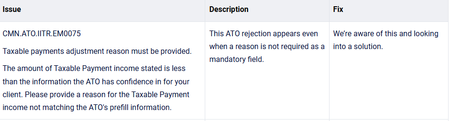
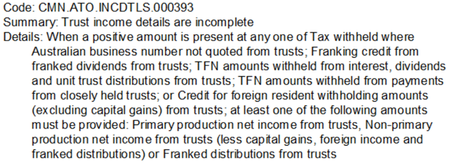
Hello everyone! We've collated a list of frequently asked questions users have posted on the Forum for your convenience. Check them out below! GENERAL What do I need to do before starting a new tax year? (DESKTOP) Where can I view the tax tables and thresholds for 2025? (DESKTOP + ONLINE) Is there a guide to using online MYOB Practice? (ONLINE) How do I reschedule agent reports for the new year? (DESKTOP) SOFTWARE/INSTALLS Where do I find the 2025 installation guide? (DESKTOP) How do I know what changes were done in the latest update? (DESKTOP) How do I backup my practice software? (DESKTOP) How do I get the latest version? (DESKTOP) Can I update to the latest version on Windows 10? (DESKTOP) Is there a guide I can follow to complete a workstation installation of AE? Is there a guide I can follow to complete a workstation installation of AO? TAX RETURNS Can I move from AO to online and roll over my returns from desktop? (ONLINE) How do I make sure depreciation assets roll over from desktop to online return? (ONLINE) How do I make sure I'm getting activity statements sent to clients for review using the portal? (ONLINE) How do I prepare a tax return from MYOB Practice? (ONLINE) How do I exclude tax returns from rolling over to the next year? (DESKTOP) Getting a blank screen when trying to do tax returns, how do I fix this? (DESKTOP) What can I expect to see if I pre-fill a tax return? (DESKTOP) TROUBLESHOOTING ERROR MESSAGES I'm getting tax validation/authentication errors, how do I know what to fix? (DESKTOP + ONLINE) How do I fix a Status Code 400 error when trying to do returns online? (ONLINE) How do I fix SQL server does not exist or access denied' error when opening MYOB. (DESKTOP) How do I fix 'machine name not unique' error when opening Tax? (DESKTOP) How do I fix foreign income tax offset not calculating properly in a trust return? (DESKTOP) How do I fix a tax return stuck on 'transmitting' in the lodgment manager? (DESKTOP) I've just done my tax upgrade and now when I try to run an estimate, nothings happening. How do I fix this? (DESKTOP) I'm running into an error installing AE/AO, how do I know what to fix? (DESKTOP) Can someone please give me a list of any known issues for the 2025 financial year? (DESKTOP + ONLINE)451Views1like0Comments