Phone number for support
Hello, how can I find a phone number for support? My online submissions for help are being ignored for weeks. I won't be able to use MYOB if they don't fix up the problem from their end. The problem is I tried to upgrade my Payroll Only to Pro and it created a separate account instead. But I have all my employees and pay, etc in my Payroll Only. Any ideas?13KViews2likes19Comments
Payroll Activity Summary vs Payroll Register Summary report in MYOB AccountRight
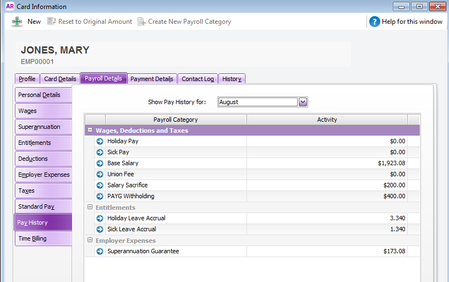
Hi Everyone As it is the end of the payroll year we thought we do an overview of two key payroll reports that are great to use at the end of the payroll year. These can be used to ensure that you have the correct values ahead of preparing your payment summaries. If you go to Reports>>Payroll>>Employees you have two reports; Activity Summary and Register Summary. Both reports do appear identical but are drawing their information from two different locations. The Payroll Activity Summary report is looking at the actual Payroll transactions recorded in payroll, whereas the Payroll Register Summary report looks at the employee’s card – in particular, the Payroll History section of the Payroll Details tab. Ideally, both of these particular reports will match as the payroll transactions recorded will match up with the employee’s card. What if the Payroll Activity Summary and Register Summary reports don’t match? If these particular reports don’t match it is likely that the card history has been updated manually. To get them to match do follow the below instructions: Run the Activity Summary and Register summary on a per month basis, to narrow down the month(s) that the reports don’t match Once the month(s) have been determined where it doesn't balance, check the payroll transactions in those months to ensure that they have been recorded correctly When that has been checked navigate to the pay history section of the employee's card - Card File>>Cards Lists>>Employees>Select the relevant employee's card>>Payroll Details tab>>>Pay History (left-hand side) Select to Show pay history for that particular and overtype that value to be same as the payroll transaction recorded Rerun the relevant reports to ensure that they do match. Once you Activity Summary and Register Summary reports do match, you are in a great position to prepare your payment summaries.12KViews2likes0Comments
ACC and Holiday Pay on MYOB Payroll
One of our staff member has been on a mix of ACC (non work related injury) and pay for 12 months. At times she has been paid for by ACC on a work trial and at other times on abatement where we pay for what she worked, topped up by ACC. I have entered the hours that we have paid her on MYOB Payroll, but at times she has worked hours that are on the timesheet but not in payroll because ACC have been paying her. Below is the relevant section from the Employment NZ website. So if she takes annual leave we pay her at her ordinary weekly pay, but she is not actually accruing holiday pay at 8%? An employee's annual leave is calculated as if the employee were still working. When the employee ends their job after a period of being on ACC, the employer needs to pay any outstanding annual leave in the final pay based on gross income. The “first week compensation” paid by the employer is included in gross income. ACC compensation payments are not earnings, and are not included in gross income. Since annual leave is calculated at the higher of the average weekly earnings for the 12 months before termination or the ordinary weekly pay, if the employee has been unpaid by the employer for over a year the average weekly pay equals zero. The employer then needs to use the ordinary weekly pay, which is the amount the employee would receive for an ordinary working week. Many employees will still have an ordinary weekly pay even after being off work on ACC for a lengthy period, which is normally covered in the employment agreement. If there is nothing specified in the employment agreement, then the pattern of work and payment from when the employee was last working would decide what an ordinary weekly pay is for the employee. For example, an employee who works 40 hours a week at an hourly rate of $20 per hour would have an ordinary weekly pay of $800 despite being off work on ACC for over a year.Solved8.3KViews0likes2CommentsSingle Touch Payroll (STP) Connection Troubleshooting Steps
If you are getting an Unable to Connect error when using STP or a Something's gone wrong at our end message with STP, there are 2 instances this normally happens with: 1. When you're running through the Readiness Check. 2. When you're setting up STP. If it is happening when you're running the Readiness Check, or Checking Payroll Details, it most commonly relates to the Internet connection, try restarting your Router and try again. If this fails, try flushing your DNS Cache on the computer To Flush the DNS Press the Windows Key on your keyboard Type in: cmd In the list of results, right-click on cmd.exe and choose Run as Administrator A command prompt window should appear At the flashing cursor, type in: ipconfig/flushdns Hit Enter on your keyboard and a confirmation message should be displayed - If not, retry steps 4-5 and ensure the command is typed correctly After the confirmation message, close the window Close AccountRight then re-open the software Firstly, you'd want to check that the version of Internet Explorer on your computer is Version 11, the latest version. Once updating that, close and reopen AccountRight and attempt to open this screen. If no changes, follow the steps below (Ensuring you restart AccountRight after each one) Ensure you are using TLS 1.1 & 1.2 in Internet Explorer Open Internet Explorer Click onto the Cog in the top-right Go to: Internet Options → Advanced Tick Use TLS 1.1 Tick Use TLS 1.2 Click Apply and then OK Close AccountRight then re-open the software Reset IE default settings Open Internet Explorer Click onto the Cog in the top-right Go to: Internet Options → Advanced Click Reset to restore the Advanced Settings Close AccountRight then re-open the software Clear the Internet Explorer Cache Open Internet Explorer Click onto the Cog in the top-right Click Internet Options Click Delete on the first tab Delete Browsing History (Temporarily files and cookies) Click OK to begin deleting this Close AccountRight then re-open the software Add as trusted site in Internet Explorer Open Internet Explorer Click onto the Cog in the top-right Click Internet Options Go to the Security Tab → Trusted Sites → Sites Add: https://*myob.com Close AccountRight then re-open the software Can you try on a different PC? If you are online, try the file offline Go to: File → Work offline (Check out) If you are the Owner/Administrator, you can continue to check out the file One the checkout process has completed, attempt to go use STP again If this is successful, you can then check the file back: File → Work Online (Check in) Flush the DNS Press the Windows Key on your keyboard Type in: cmd In the list of results, right-click on cmd.exe and choose Run as Administrator A command prompt window should appear At the flashing cursor, type in: ipconfig/flushdns Hit Enter on your keyboard and a confirmation message should be displayed - If not, retry steps 4-5 and ensure the command is typed correctly After the confirmation message, close the window Close AccountRight then re-open the software Try setting Internet Explorer as the Default Browser Navigate to Settings. You can get there from the Start menu. Select Apps Click Default apps in the left pane Click Microsoft Edge under the "Web browser" heading. If there's a different default browser, you'll see that program's icon under "Web browser" instead. Select the new browser (ex: Internet Explorer) in the menu that pops up You'll see that your new selection is now listed under "Web browser." Close AccountRight then re-open the software Enable Access Across Domains in Internet Explorer Open Internet Explorer Click onto the Cog in the top-right Click Internet Options Go to the Security Tab → Trusted Sites → Custom Level Enable: Miscellaneous → Access across domains Enable: Miscellaneous → Launching programs and files in IFRAME Close AccountRight then re-open the software Lower the Security Settings in Internet Explorer Open Internet Explorer Click onto the Cog in the top-right Click Internet Options Go to the Security Tab → Trusted Sites → Security Level for this Zone Set this to Low Click Apply then OK Close AccountRight then re-open the software This next option may have other potential security risks if actioned, speak to your IT person if unsure In Server Manager, under local server turn Enhanced Internet Explorer Security Settings 'off' If none of the above steps work you will need to contact an IT professional to further look into this error. Still having troubles? Let us know by Starting a Post and write down the details of the issue and we'd be happy to help4.7KViews0likes0Comments
Payslip field - Superannuation
Hi all I've just upgraded my AccountRight to enable a payroll function and while customizing the payslip I've found that there isn't the field to show the mandatory super contribution and fund name (or name & number) that the SG contributions are to be paid into. The Payslips advice from the Fair Work Ombudsman indicates that this information must be included on a payslip. Have I missed something?Solved3.3KViews0likes5CommentsError Uploading ABA Payroll File to ANZ - Invalid Account Number for Item 39
We had a new employee commence work recently and today we tried to pay them for the first time. When uploading the ABA File into ANZ, there is an error that says there is an "Invalid Account Number for Item 39." We went back and deleted the transaction and tried again with all employees apart from our new employee and it worked as normal. However, when trying again with just our new employee, ANZ rejected the payroll file again with the same error. We ended up paying him as a "Pay Anybody" and it went through fine so we assume it is an error with MYOB/ the ABA file, but obviously we would like it solve this issue for future pays. Thanks in advanceSolved3KViews0likes3CommentsHow to allocate Two payments made against single payroll transaction on my bank feed
Hi, I am new in MyOb as well new in my org. My org is using AccountRight. I am facing problem to match two payments against single payroll transaction. We pay to the employee weekly (sort of advance). For example. We paid $700 to an employee on Friday for one week (lets date is 25/02/2022). On Monday (28/02/2022) we posted/processed the payroll including 8 hrs of overtime. So JV is like (considering there is no tax) Salary DR 700 Overtime DR 150 Bank CR 850 On 25th Feb I have already transferred 700, so on 28th Feb I have just transferred the remaining 150. Now, Bank feed showing two payments (700 & 150) but payroll transaction showing one payment from bank i.e 850. How can I match and allocate through bankfeed? Please find the attached file for real data. Thanks in advance for your kind assist.Solved2.2KViews0likes5Comments
Adjusting Accrued AL:LSL & Personal Leave When Working Hours Have changed
Hello Community, As a result of the business downturn during COVID - one of my salaried staff have had their hours reduced from FT 38 hrs per week to 25.3 hrs per week. When I tried changing the leave accrual hours in the Entitlements area to reduce accruing hours p/period the other F/T salaried staff members hours also changed. I have since found out that I need to create new Entitlement Categories specifically for the part-time employee because both salaried employees are linked in the original one. Of course, the accrued leave hours in the employee with less weekly hours card shows all types of leave as being accrued under the old entitlement category. My question is: How do I do a manual journal to deduct the accrued hours in the original category while adding the correct accrued hours (as the hours accrued up until now have been more than what should have been accruing) in the new entitlement categories. EG: let's say the employee has accrued 100 hours of AL and 50 hours of Personal Leave under the original/old entitlement but should only have had 80 hours and 45 hours (not true figures of course) in the new category. I do a singular leave journal deducting 100:50 hours from the old category and adding 80:45 hours in the new category. To do this I have to have both the old and the new categories ticked for the employee so that all categories come up on the process payroll screen. When done I would need to go back, again, and remove the tick from the old category so that only the new category remains for future accruals. I hope this is clear for someone to advise me further. I really do appreciate the assistance. Some things just can't be explained in a couple of lines. Sorry.Solved2.1KViews0likes10Comments
C0000005 Fatal Error
Hi One of my clients is getting a Fatal Error when try to enter a pay for one employee only. They can enter pays for all other employees, but when they enter it for this one employee, they get the following error (image attached). Thanks Jacqui MargerisonSolved2.1KViews0likes6Comments
How do I pay super for a contractor?
To pay super from MYOB you need to process the super payments through payroll. This means to pay super for a contractor you'll need to set up the contractor as an employee to pay their super. Just manually add them as an employee and enter their super details. If you pay the contractor via invoices they send you, you will also need to set the contractor up as a supplier so you can pay their bills like any other. Then when you process your payroll to pay super for the contractor, only enter the super amount into their pay (and no other amounts). You can then declare the pay to the ATO as part of your STP reporting.1.9KViews2likes0Comments