Forum Discussion


MMC_Convert
10 months agoExperienced User
Hi Ampcom,
Step 1: Go to Sales Settings
• Click on Settings (gear icon) in the top-right corner.
• Select Sales Settings.
Step 2: Open Templates
• Inside Sales Settings, click on the Templates tab.
• You’ll see the list of templates. Identify the active template (marked as Default).
• Click the three dots (…) next to the template name and select Edit.
Step 3: Edit Template Layout
• The template editor will open with a preview of your invoice.
• On the left-hand panel, go to the Content section.
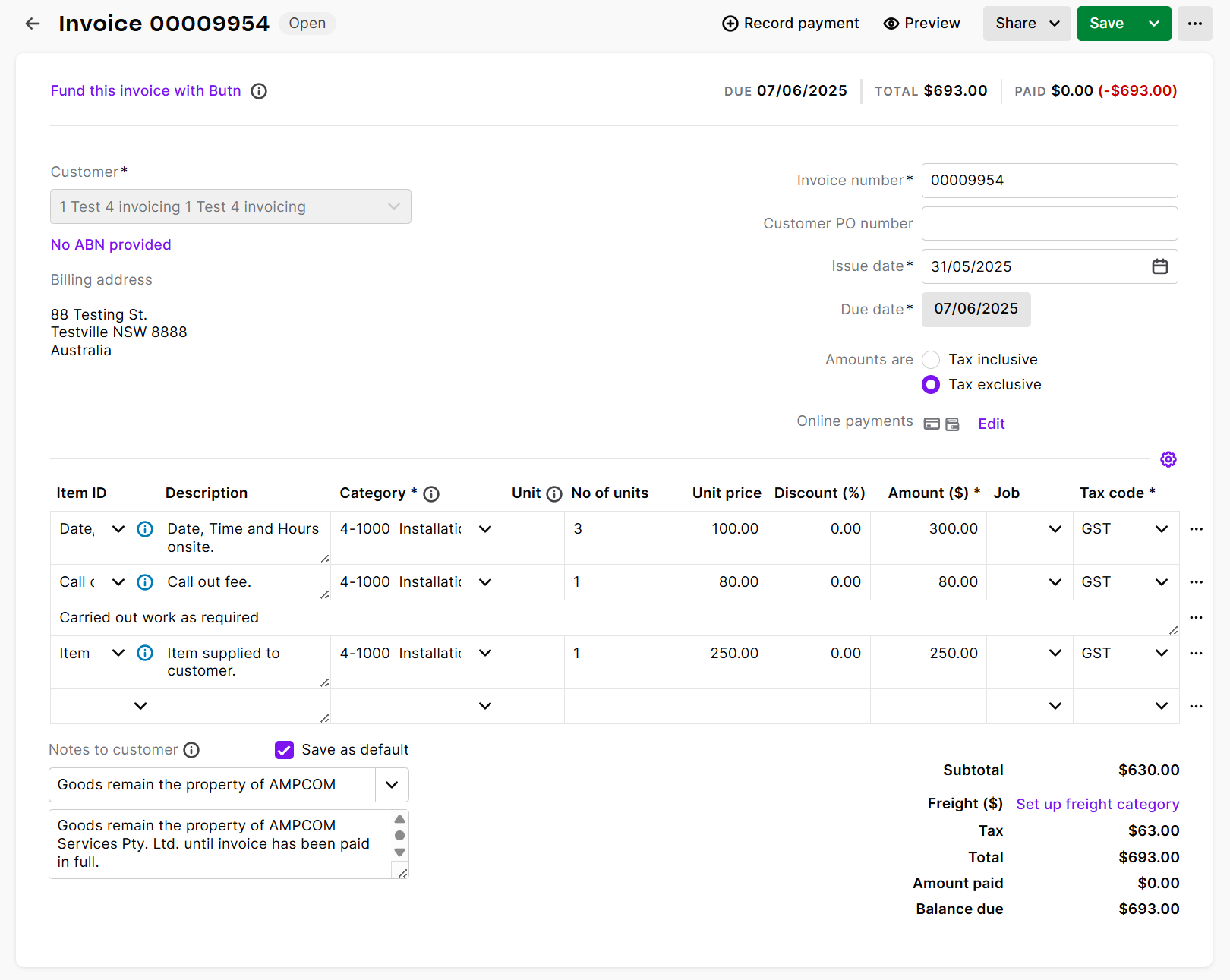
• Under Table Display, you’ll see all the columns currently included (like Item ID, Description, Qty, Unit Price, Discount, Tax, and Amount).
Step 4: Remove the Discount Column
• Find the column labeled Disc. (%).
• Toggle OFF (eye icon) to hide it from the template.
• The PDF preview will update, and the discount column will disappear from the invoice layout.
Step 5: Save Changes
• Click Save in the top-right corner.
• Your updated template will now be applied to future invoices.
(Please find the document attached)
Looking for something else?
Search the Community Forum for answers or find your topic and get the conversation started!
Learn, solve, grow
Level up your skills and find answers across all MYOB products