Deploying AccountRight PC Edition via intune
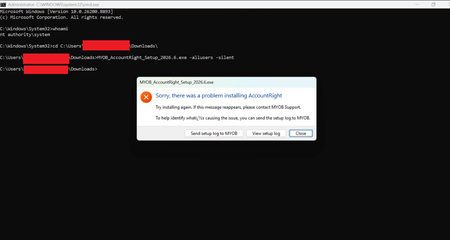
As of 2026.6 MYOB will no longer be releasing the msi installers that we have used to push the latest version across our organization. I ran into a lot of roadblocks getting this to work using MYOB PC edition and would like to outline what worked for us to save people going through the trouble. In discussions with the MYOB Team, they have expressed that intune packaging and rollout is not their responsibility and they cannot offer support regarding how this is impacted by the discontinuation of msi installers. Per the article Deploying AccountRight in an IT-managed environment there is an -allusers flag which works well when pushed by a script or run executed as an administrator, however it fails to install when run as SYSTEM which is how intune executes it. Instead we are now installing myob at user scope (hopefully this means updates will install automatically going forward) Deploying AccountRight via Intune - Download 2026.6 exe - Use IntuneWinAppUtil.exe to generate MYOB_AccountRight_Setup_2026.6.intunewin Create new windows app on intune (The below settings must be changed as they have now changed/are not autofilled by the .intunewin file): Install command: MYOB_AccountRight_Setup_2026.6.exe -silent Uninstall Command: %localappdata%\Programs\MYOB\AccountRight\Update.exe --uninstall Install Behaviour: User Detection Rules: Manually Configure: File: Rule type: File Path: %localappdata%\Programs\MYOB\AccountRight\ File or folder: Huxley.Application.exe Detection Method: File or folder exists Hopefully the above can save you some time and keep your organization up and running!352Views0likes7Comments
Back up offline is not available v2026.5
When will this feature to back up offline be available for the latest version v2026.5. When searching for answers the useless chat response is to go to: Set Up, Preference and enable offline backup (this is not showing). I always back up offline for all my clients - this needs to be rectified URGENTLY. MYOB is starting to have many issues and faults.1.7KViews14likes60Comments
MYOB offline being phased out
I Just received an email regarding the phasing out of the desktop library I’m pretty disgusted that this is happening and having to have all files online and was told this would be happening mid June 2026 - not even the end of a financial year for an accounting program this is pretty pathetic. Was told each file would be $ 35 per file What happens to files that may have an audit and accounts that are needed for a 7 year period not to mention end of year journals for this current financial year. I have been working with this program for 32years & not everyone wants their files online & in the cloud - let alone those who don't need payroll, use bank feeds or all the extra's that are in the program - not to mention those who live rurally with **bleep** internet Very annoyed3.5KViews21likes100CommentsIssues uploading offline files to online - please help!
Hi All So many problems - but I am in dire need of some assistance with uploading my offline files - and MYOB has gone AWOL. I received emails x 4 for the subscription invite. I have only tried to tackle one file - agreed to the subscription and received a serial number. it then said upload file - so I logged in and went to "upload offline file", eventually found the file I needed and it went straight to: sign up to an subscription ...again...no other option showing. I dont want another subscription as I just did that part - how do I get this file online to be able to open and change the serial number to the new one? Ive now been a few weeks without access to 4 really important files - any assistance from our community would be appreciated xx148Views0likes3Comments
Offline company file to Online
I have a company file which is offline that needs to be brought online and it won't let me do it as i already have an online file linked to my serial number. I have attempted to bring the file online by purchasing another AccountRight subscription but it still won't allow me to bring my offline file online. Someone picked up 3 hours into the hold and said they weren't trained for this query and put me back into the queue. I've been on hold for almost 5 hours on the phone with support with no response. Could you please get back to me asap.138Views0likes3Comments
AccountRight MSI installer - auto update
We're wanting to push out AccountRight automatically to our PCs through intune. I tried the MSI installer, but this appears to not allow auto-updating. Is that correct? Is there a way to install AccountRight automatically using Intune, but allow auto-updating? Thanks!Solved385Views0likes2Comments
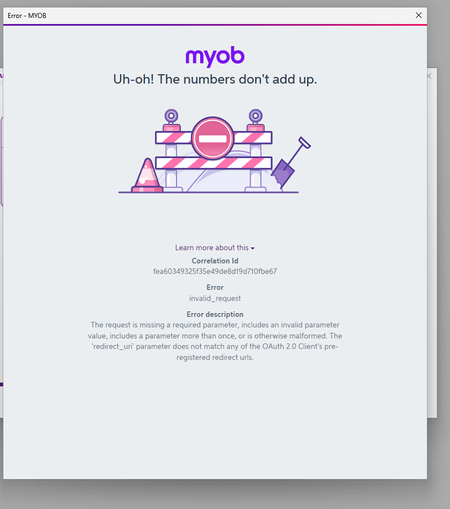
Uh-Oh! The numbers dont add up ERROR
Managed to get 2025.11 installed via .msi and now when we go to Sign in we get this. After spending the morning to get the download to work from MYOB's website now we cant even use the version. We have clients using MYOB Teams reports and we need to do payroll. 2025.10 wont allow us to get those reports now that the new version is down. Please can someone fix this!1.2KViews4likes16CommentsDownload MYOB AccountRight Server Edition 2025.11
Hi Trying to download the server edition released yesterday 2025.11. When clicking on the download link on the web page all I get is this. This XML file does not appear to have any style information associated with it. The document tree is shown below. <Error> <Code>AccessDenied</Code> <Message>Access Denied</Message> </Error> I can download the previous version just not the current one.1.7KViews2likes23Comments
Invalid Fingerprint Error
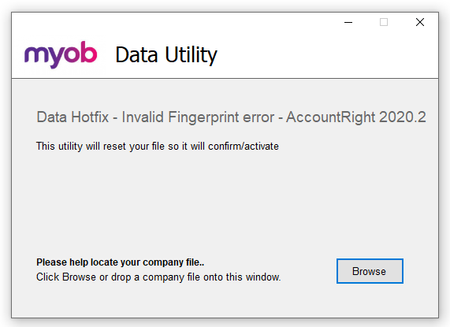
Hi Everyone Products: AccountRight Got a question about using the below tool? There is a second post on this thread that does answer commonly asked questions - scroll down to see that post or click here. We have seen a number of cases of offline company files that, following an AccountRight upgrade, are not opening or closing unexpectedly or generating a "Something has gone wrong message." This article contains information on identifying if you are impacted and running the necessary tool required to repair that file to allow it to be opened: How do you determine you are impacted? Following an AccountRight upgrade, if you are not able to open an offline company file, or you are encountering a "Something has gone wrong" message do check out the diagnostic file for the application - this can be opened in NotePad or another similar application. If you are needing to run the following tool, that diagnostic file would contain traces of the wording "InvalidFingerPrint" Example line in diagnostic file would: MYOB.Huxley.UI.Decorators.DecoratorFaultProcessor,Error,1,Unhandled error. : MYOB.Huxley.API.HuxleyActivationException: (InvalidFingerprint): Running the Tool: *Please note, this process will work for any AccountRight files from version 2020.2 or newer If you do see cases of "InvalidFingerprint" in that diagnostic file, do look at completing the following steps: Close AccountRight Download the following tool: AccountRight Hotfix tool Having trouble accessing the download? Right-click and select Save Link as Navigate to where you have saved that file - typically the Downloads folder on your computer Find the Hotfix tool zipped file (Data Hotfix - Invalid Fingerprint error - AccountRight 2020.2.zip) and select to extract the data - typically right-click and Extract All... Once extracted, select to run the AccountRight_Hotfix.exe file. This will open the tool: Please note that depending on your IT setup you may need to be logged on as the Windows Administrator. Browse to the impacted file and select Open once located Indicate that you have a backup of the file and then Apply. Should you be successful you would encounter the following message: Once you have that message, close the tool and open the file in AccountRight as per normal. Note: You may be prompted to re-confirm upon opening but this can be done online using the Confirm Online function.28KViews4likes1Comment