MYOB 403 Forbidden Error – Our Experience and How We Finally Resolved It
Hi Everyone, I thought I would share our experience from last week when we suddenly lost access to virtually everything MYOB-related. Hopefully, if anyone else experiences the same issue, this post might save them the absolute nightmare we went through trying to resolve it. How It Started On Friday, everything was working perfectly. We had full access to MYOB through the desktop application, website, and all associated services. After the long weekend, we returned to work on Tuesday to discover that the MYOB desktop application would no longer work. Every time we attempted to log in, it would simply return us to the home screen without opening the login page. We then attempted to access several MYOB websites: status.myob.com – 403 Forbidden MYOB Community – 403 Forbidden my.myob.com.au – 403 Forbidden Interestingly, when we accessed these same websites using our business mobile phones on mobile data, everything worked perfectly. We were also able to confirm through MYOB's status page that there were no reported outages. Investigating Our Network Initially, I suspected the issue might have been related to our Fortinet gateway or firewall, so we contacted our external IT consultant. After thoroughly checking our systems, they confirmed that the problem was not originating from our network. All seven devices onsite were experiencing the same issue, and our gateway was not blocking any connections to MYOB. Our IT consultant explained that a 403 Forbidden error is a response from the destination server, essentially saying, "We have received your request, but we are refusing access." He even logged into our gateway and showed me the network traffic, including the requests being sent to MYOB and the 403 responses being returned. At this point, we had strong evidence that the issue was occurring somewhere on MYOB's side of the connection. The Nightmare That Is MYOB Technical Support This is where the real frustration began. I can confidently say that MYOB has one of the most useless technical support teams I have ever had the displeasure of dealing with. Worse than Telstra, and that's saying something! On the first day alone, my office manager and I spent a combined six hours on the phone with MYOB technical support. Despite explaining everything we had already investigated, their staff continually insisted the problem was on our end. They spent approximately 2–3 hours remotely connected to one of our computers, checking internet settings, Windows updates, firewall configurations, and just about everything else they could think of. Eventually, they concluded that the problem must be with our Internet Service Provider (ISP). So, despite already having our network checked by an IT professional, I contacted our ISP. Thankfully, they were extremely helpful. They confirmed that the 403 Forbidden response was being returned by the destination service and that our ISP was simply providing the connection. They even provided their findings in writing, which I forwarded directly to MYOB. Doing MYOB's Troubleshooting for Them That evening, frustrated with the complete lack of progress, I started researching the issue myself. I discovered that the error appeared to be associated with Amazon CloudFront, which is a content delivery network operated by AWS. CloudFront can also integrate with AWS Web Application Firewall (WAF), which can restrict access based on factors including public IP addresses. This raised a fairly obvious possibility: our business's static public IP address was being blocked somewhere within MYOB's infrastructure or its associated security services. The following day, I contacted MYOB technical support again. I repeatedly requested escalation to a higher-level technician, supervisor, or manager. Every request was denied. Instead, I spent another four hours going backwards and forwards with technical support while they continued blaming everything imaginable, except MYOB. I specifically asked them multiple times to investigate their CloudFront/AWS security logs and check whether our public IP address had been blocked. Rather than investigating this possibility, they continued suggesting issues that simply did not make sense. Some examples: MYOB: "It could be a Windows security update." Me: "Then why can't our Android devices access it? They don't run Windows." MYOB: "It could be your computer's firewall." Me: "We have seven different devices experiencing exactly the same issue, and our IT consultant has already confirmed our firewall isn't blocking it." MYOB: "It could be the VPN you use." Me: "Our VPN is used for remote connections INTO our premises. It has nothing to do with accessing external websites FROM our premises." Every time I challenged one explanation with evidence, another excuse was presented. Not once did anyone appear willing to seriously investigate the possibility that MYOB's own security infrastructure was denying access. The Solution – Changing Our Static IP Address By Friday afternoon, I had completely lost patience. I contacted our ISP again and requested that they change our business's static public IP address. This was something I had been strongly opposed to doing, as changing our IP address meant having to reconfigure numerous external systems, including: Offsite backup services Remote sales access Security systems Other remote connections and services However, after spending countless hours dealing with MYOB support and getting absolutely nowhere, I decided we had little choice. And would you believe it? The moment our public IP address was changed, MYOB started working again. The desktop application worked. The websites worked. Everything was accessible again. No changes to Windows, no firewall adjustments, no computer updates, and no changes to our internal network. Just a different public IP address. While I cannot confirm the exact rule or system responsible without access to MYOB's logs, this strongly indicates that our previous public IP address was being denied access somewhere within MYOB's infrastructure or its associated security services. Exactly what I had been asking their technical support team to investigate for days! The Takeaway for Other MYOB Users If your business has a static public IP address and you suddenly start receiving 403 Forbidden errors across multiple MYOB services, particularly when those same services work over mobile data, consider the possibility that your public IP address is being blocked. Before spending days troubleshooting individual computers, Windows updates, firewalls, or your ISP, try accessing MYOB from a completely different internet connection. If it works from another connection, ask MYOB to investigate whether your public IP address is being blocked by their security infrastructure, including CloudFront or AWS WAF. If you cannot get the issue resolved through MYOB, changing your public IP address may be a workaround, although businesses with static IP addresses should be aware of the significant inconvenience this can cause to other systems. My biggest frustration isn't necessarily that the issue occurred. Technical problems happen. It's that we spent days providing evidence, repeatedly requesting escalation, and explaining the same basic networking principles to a technical support team that appeared unwilling or unable to investigate the actual cause. Between my office manager, our IT consultant, our ISP, and myself, an enormous amount of time was wasted on an issue that was ultimately resolved by changing one IP address. For a business that relies on MYOB for daily operations, this level of technical support is simply unacceptable. Hopefully, sharing our experience saves someone else the same frustration.27Views1like0Comments
Payrun>payroll data of a client is not loading unlike other clients which are getting loaded quickly.
I am having issue with only one particular client company payrun and payroll the web page after clicking payroll is not loading, In dev tools the chrome shows the error code 400 This is shown in network tab "BundleTime":17352864645} Failed to load resource: net::ERR_CERT_COMMON_NAME_INVALID { "statusCode": 400, "message": "The Threshold should not be null and requires a $ value.", "requestId": "******************", "errors": [ { "message": "The Threshold should not be null and requires a $ value.", "helpId": null, "helpLink": null } ] }207Views0likes2Comments
CANNOT IMPORT SALES Error -25: Invalid amount.
Hi, We are attmepting to import data into a new MYOB AR file which is proving to be quite frustrating. While some files import without error, many of them are subject to "Error -25: Invalid amount." I have attempted to modify various variables/fields to no availl. I also attempted to identify how these failed imports differ from those that were successful. One potential problem cell was the 'discount field' which was filled with negative values. When removed the error message changes to Error -28: Item is not sold. Please see attatched exported file, and the import log. Any solution would be gretaly appreicated.622Views0likes2Comments
unable to access Print/Email Invoices list 'Unable to Connect' error message
Dear MYOB support We've been experiencing ongoing issues of being unable to access the print/email invoices function, Accountright error message displays 'Unable to Connect' (please see my previous posts regarding same issue). We have been dealing with this same problem for MANY months, with great frustration. While the print/email invoices list is not able to be accessed we've had no choice but to painstakingly email every single invoice individually = huge waste or our staff's time. About a month or so ago though & to our immense relief & amazement, this function miraculously started working again....hallelujha!! ...& we were once again able to access the Print/Email Invoices list so we could 'select all' & bulk email all invoices for the day. SO much quicker! However & incredibly frustratingly, as of TODAY the Print/Email Invoices function has stopped working again. It happens regardless of which user login is used & from whichever of our offices we login from & over various internet providers - as has been the case previously. All other functions continue working. Yesterday it was working...today it is not, and we have not done anything differently. All past suggestions from MYOB support regarding this issue have not been able to fix it. Given that the function recently started working again, without us doing anything differenty, but has now stopped working again, can someone from MYOB please explain what is going on? It is incredibly frustrating to be battling this issue with what is such a basic & necessary function. I look forward to a response.527Views0likes2Comments
Windows not resizing Accountright
Affects: Using dual monitors - Command Centre window can be moved - any other window shows a double-head arrow and only resizes that window - Setup, Preferences, Windows shows 'save window positions' as ticked - if you untick it, restart AR, then no change made, it reverts to ticked Is 'fixed' by running only one screen; but this is a nuisance! People obtain two screens so they can run them to advantage. I'm sure the clever minds at MYOB could come up with a solution for running dual monitors?439Views0likes1CommentUnable to open AccountRight file after upgrading to the latest version
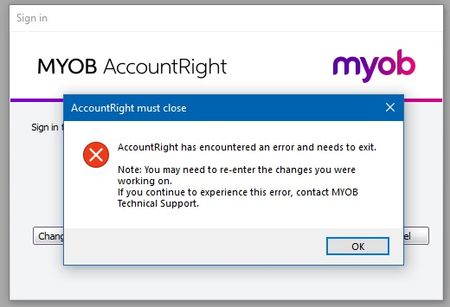
Hi Everyone, We have had a number of reports from Users who have upgraded their files to the latest version offline and when trying to open the upgraded file they get the following error message: AccountRight has encountered an error and needs to exit The following AccountRight Hotfix tool can be run over the company file. Instructions for running the tool are also included below. Run the AccountRight Hotfix tool: Close AccountRight Download the AccountRight tool Find the tool that you downloaded and double click it When the tool appears, all files found in your AccountRight library will be listed If your file isn't listed, click the Server Edition tab. Still not listed? Click Custom Location and then browse to the folder containing your company files. (Note: You can also drag and drop your company file into this window to update the file) Select the files you need to open and click Update selected files. When all files have finished, you can now close the tool. Start AccountRight and open the company that has been updated. When the Confirmation window appears, choose to confirm the company file online and click Next When complete, close the Confirmation window. You can now work on this file. If you continue to have problems opening your files, do let us know by Starting a new Post. I'm sure the MYOB Community would be happy to assist.5.3KViews0likes0CommentsTroubleshooting Connection Errors
Hi Everyone. Here are a couple of quick and easy things you can do if you are getting connection errors in AccountRight to try and resolve them. Flushing the DNS cache can fix any errors where the computer cannot contact our servers. This is done by: Switch off the Modem: Switch off the modem and leave it switched off for a couple of minutes. This might seem overly simple but don’t discount it, as the humble modem can accumulate a lot of information inside it. By switching the modem off and leaving it for a few minutes it allows the modem a chance to clear ensuring that you are connecting with a fresh connection. Flush the DNS cache on the computer: Press the Windows Key on your keyboard Type in: cmd In the list of results, right-click on cmd.exe and choose Run as Administrator A command prompt window should appear At the flashing cursor, type in: ipconfig/flushdns Hit Enter on your keyboard and a confirmation message should be displayed - If not, retry steps 4-5 and ensure the command is typed correctly After the confirmation message, close the window Close AccountRight then re-open the software Try a different connection to see if you can connect. Whether it’s a hotspot off your phone or you call your accountant to see if they can access your file on their end, this can help you work out whether the problem is with your connection or with AccountRight. As the antivirus monitors operations in real time this can impact internet traffic coming into and out of your computer. Temporarily disabling the antivirus can help you determine if it is causing issues with connecting to your file. Here is a great help article that can take you through how to do this: Speed and performance tips Still not connecting? Our help article, Error: Connection error, does give some additional troubleshooting steps and more information on how to resolve some connection errors.3.6KViews0likes0Comments