Forum Discussion

2 Replies
- AmpcomExperienced User
Hello MMC,
Thank you for your reply and excellent instructions. Greatly appreciated.
Yes, this can be done, but turning off the Disc (%) column permanently disables it even if there is a discount applied on an invoice.
If the Disc (%) column is enabled, typically it will not show if no discount is applied to any items in the invoice.
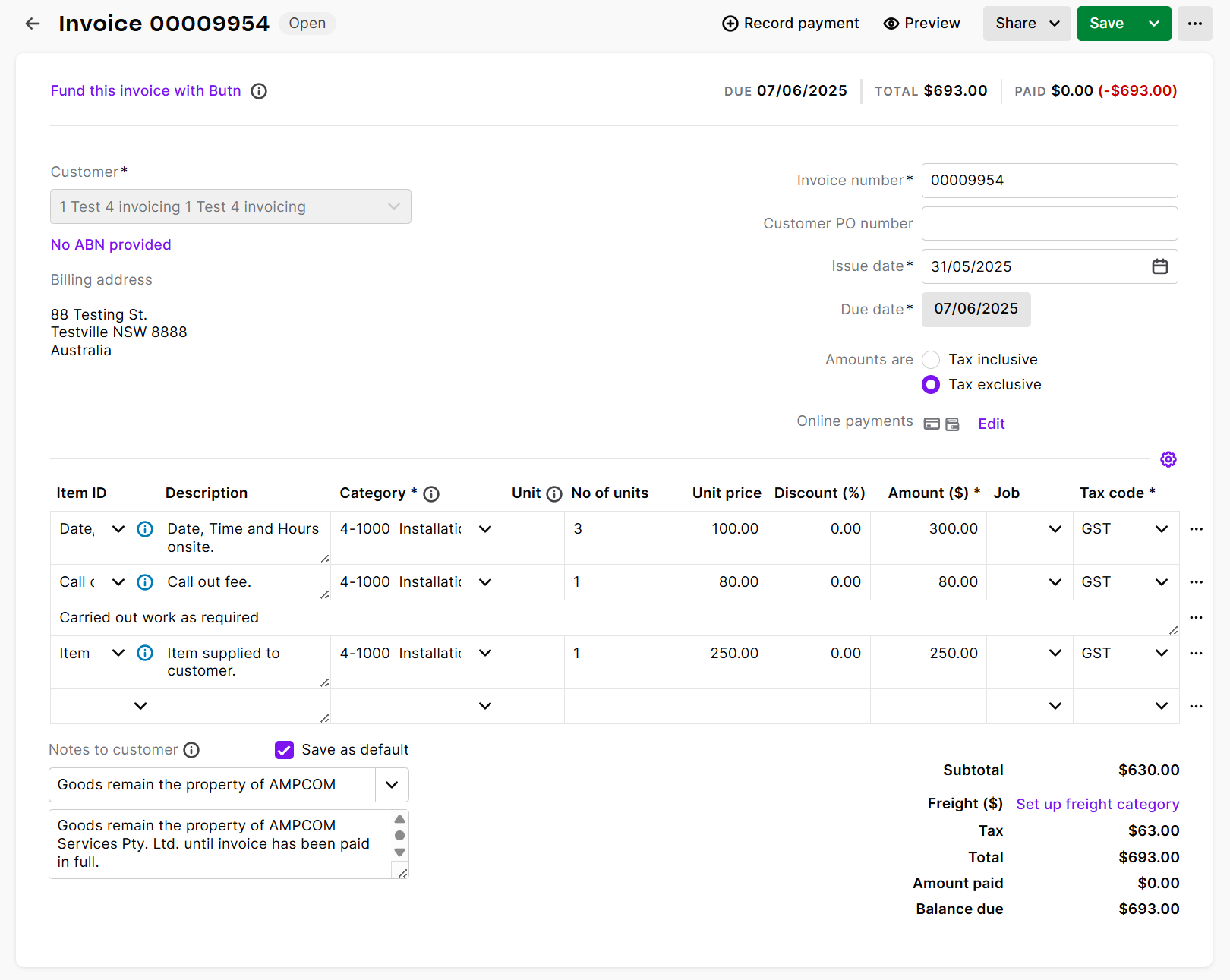
I presume when “Insert Blank Row” is added the coding in the way the MYOB works, is it assigns it as a “discount” hence then auto adding the Disc (%) column when you preview, share or print the invoice.
I was hoping to use the “Insert Blank Row” to add description / notes on work completed etc.
I am aware I can create an “Item” called Job Details and enter it there, but this then adds the “Qty”, “Unit Price” which I just add zero for now.
Thank you for your assistance anyway.
Kind regards, Philip
- MMC_ConvertExperienced User
Hi Ampcom,
Step 1: Go to Sales Settings
• Click on Settings (gear icon) in the top-right corner.
• Select Sales Settings.
Step 2: Open Templates
• Inside Sales Settings, click on the Templates tab.
• You’ll see the list of templates. Identify the active template (marked as Default).
• Click the three dots (…) next to the template name and select Edit.
Step 3: Edit Template Layout
• The template editor will open with a preview of your invoice.
• On the left-hand panel, go to the Content section.
• Under Table Display, you’ll see all the columns currently included (like Item ID, Description, Qty, Unit Price, Discount, Tax, and Amount).
Step 4: Remove the Discount Column
• Find the column labeled Disc. (%).
• Toggle OFF (eye icon) to hide it from the template.
• The PDF preview will update, and the discount column will disappear from the invoice layout.
Step 5: Save Changes
• Click Save in the top-right corner.
• Your updated template will now be applied to future invoices.(Please find the document attached)


Looking for something else?
Search the Community Forum for answers or find your topic and get the conversation started!
Find technical support and help for all MYOB products in our online help centre
Dig into MYOB Academy for free courses, learning paths and live events to help build your business with MYOB.